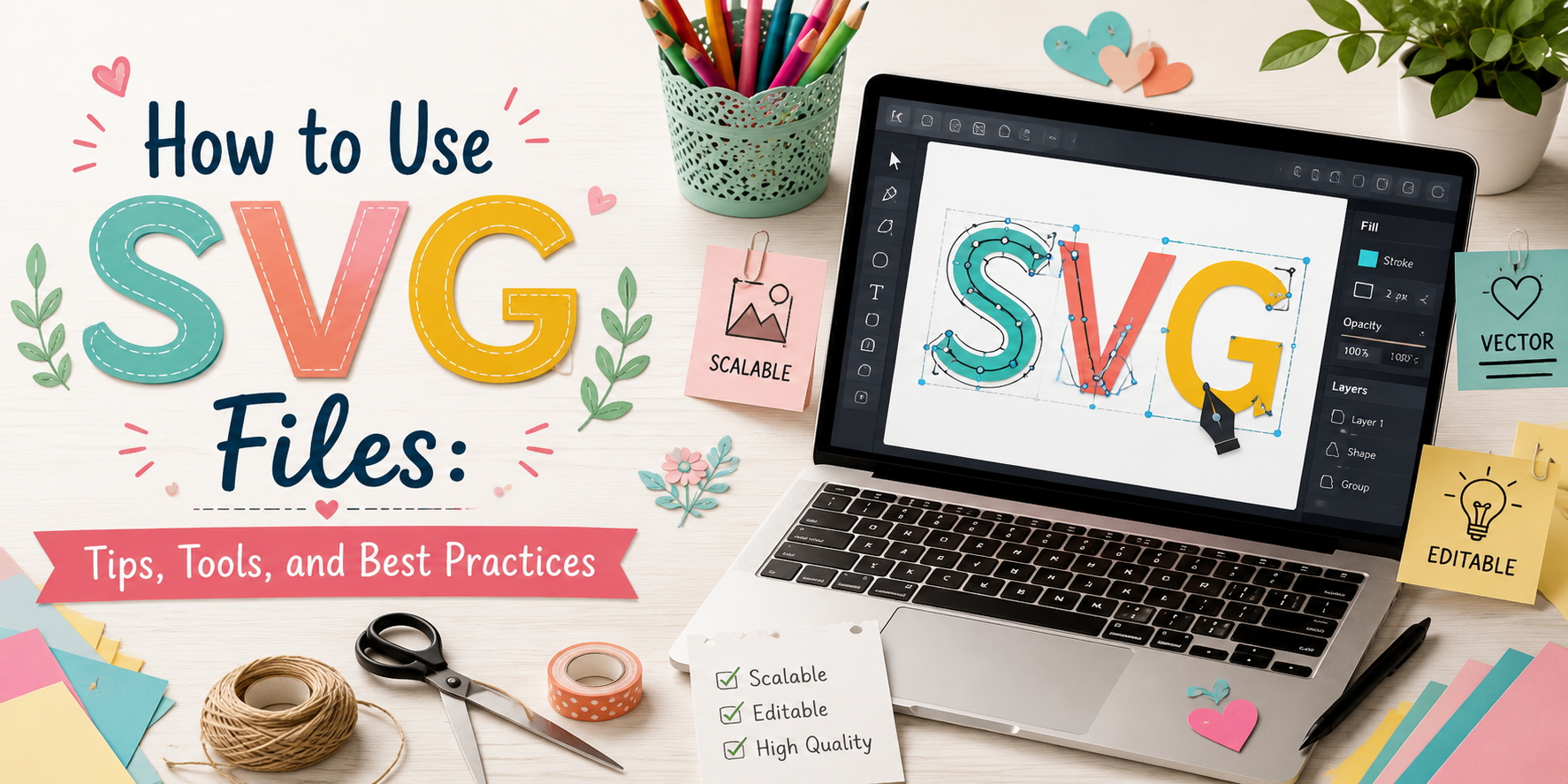
How to Use SVG Files: Tips, Tools, and Best Practices
Creating SVG files can feel confusing for beginners who want to use custom designs in their projects. Many users are unsure how to open, edit, and use SVG files with the right tools. These challenges can lead to errors and make projects harder to complete.
This guide explains the basics of SVG files, including how to open them, choose useful tools, and use them for different projects. Readers will learn simple tips for managing SVG files and avoiding common issues during their design work. The article also covers best practices for file setup, editing, and compatibility. With clear steps and helpful guidance, users can build better workflows and handle SVG files with more confidence.
What Is an SVG File?
An SVG file is a digital image format used for creating graphics with lines, shapes, and paths. SVG stands for Scalable Vector Graphics. Unlike regular image files like JPG or PNG, SVG files can be resized without losing quality. SVG files are made using mathematical points and paths instead of pixels. This helps the design stay sharp at any size. A small logo, a large banner, or a detailed craft design can all use the same SVG file.
Many designers and crafters use SVG files because they are flexible and easy to edit. You can change colors, adjust shapes, and modify parts of the design with compatible software. SVG files are common for projects like Cricut crafts, Silhouette designs, website graphics, logos, icons, and print materials. They work well for cutting machines because the machine can read the clear paths and shapes in the file.
Another useful feature of SVG files is their small file size. A well-made SVG can store detailed designs without taking up much space. This makes it a practical choice for digital projects and creative work. Understanding how SVG files work helps you create better designs and choose the right file type for your needs. Once you know the basics, using SVG files becomes much easier.
Why Use SVG Files?
SVG files are useful for many design projects because they keep images clear at any size. The file uses lines, shapes, and paths instead of pixels. This helps the design stay sharp on small screens, large signs, and printed items.
One major benefit of SVG files is flexibility. You can resize a logo, icon, or craft design without losing quality. This makes SVG a good choice for websites, cutting machines, print projects, and custom graphics. SVG files also work well with many design tools. Programs used for editing, crafting, and web design often support this file type. Users can change colors, adjust shapes, and edit parts of a design with the right software.
Another reason to use SVG files is their small file size. A simple SVG can take up less space than some image formats while keeping a clean look. This helps pages load smoothly and keeps design files easier to manage. For craft projects, SVG files offer more control. Cutting machines can read the paths in an SVG file to create clean cuts for stickers, signs, shirts, and other handmade items. Designers can also reuse the same file for different projects with small changes.
How to Open SVG Files
Opening an SVG file is simple because many tools can read this format. The right method depends on what you want to do with the file. A web browser works well for a quick view. Design software helps with editing. Cutting machine programs prepare SVG files for craft projects.
Opening SVG Files in Web Browsers
Web browsers are an easy way to view an SVG file. Browsers like Chrome, Firefox, and Edge can display SVG images without extra tools. You can open the file by double-clicking it or dragging it into an open browser window.
This method is useful for checking the design before editing or using it. The browser shows the image, but it does not give you editing options. You cannot change colors, move parts, or adjust shapes directly.
Using Design Software
Design software gives you more control over SVG files. Programs like Adobe Illustrator, Inkscape, and CorelDRAW allow you to edit shapes, colors, text, and other design elements.
Open the software and choose the option to import or open your SVG file. After loading the file, you can make changes and save the updated version. This option works well for designers who need to customize SVG graphics for different projects.
Some software may display SVG files differently. Check the layers, fonts, and shapes after opening the file to make sure everything looks correct.
Importing SVG Files Into Cutting Machine Software
SVG files are popular for cutting projects because they keep designs sharp at different sizes. Cutting machine programs can read these files and turn them into cut lines for machines.
Programs like Cricut Design Space and Silhouette Studio allow users to upload SVG files. After importing the file, you can adjust the size, position, and cutting settings before starting a project.
Before cutting, review the design carefully. Check for extra lines, missing parts, or unwanted shapes. A quick review helps create cleaner results for crafts, stickers, signs, and other handmade projects.
How to Use SVG Files for Different Projects
SVG files work well for many creative projects. Their clean lines and flexible size make them useful for cutting machines, design work, and printed products. A single SVG file can be edited, resized, and adjusted for different needs.
Each project type uses SVG files in a slightly different way. Choosing the right tools and settings helps create better results.
Cricut Projects
SVG files are a popular choice for Cricut projects. They allow the cutting machine to read each shape and line in a design. This makes them useful for creating custom crafts.
You can use SVG files for projects like paper crafts, stickers, labels, decals, and home decorations. Upload the SVG file into Cricut Design Space, adjust the size, and prepare the design for cutting.
Simple designs usually work best. Clean shapes and clear details help the machine cut the design more accurately.
Silhouette Projects
Silhouette machines also work well with SVG files. These files help create detailed cuts for different craft ideas.
You can use SVG designs for vinyl projects, greeting cards, signs, and custom decorations. After importing the file into Silhouette Studio, you can resize elements, change layers, and prepare the design for your material.
Organizing the SVG layers before cutting can make the process easier. It also helps separate different colors or design parts.
Graphic Design Projects
SVG files are useful for digital design projects because they keep their quality at different sizes. Designers can use them for logos, icons, website graphics, and illustrations.
SVG files can be edited in design software to change colors, shapes, or sizes. They are a good option for designs that need to appear on different screens or platforms.
Keeping the design simple helps maintain a clean look. Too many small details may make the file harder to edit.
Print and Merchandise Designs
SVG files can also be used for print and merchandise designs. They are helpful for creating artwork for items like shirts, mugs, tote bags, and posters.
Designers can resize SVG files to fit different products without losing image quality. This makes one design usable across multiple items.
Before printing, check the file size, colors, and design placement. A quick review helps make sure the final product looks the way you want.
Read also: How to Create an SVG in Canva for Beginners
Best Tools for Working With SVG Files
The right tool makes SVG work easier. Different programs help with creating, editing, and using SVG files. Some tools are made for design, while others focus on cutting projects. Each option has features that fit different needs.
Canva
Canva is a simple choice for beginners who want to create basic SVG designs. It offers ready-made elements, shapes, text tools, and layout options. Users can create designs without needing advanced design skills.
Canva works well for simple logos, stickers, craft designs, and printable projects. It also allows users to export designs as SVG files for other uses.
Adobe Illustrator
Adobe Illustrator is a professional design tool used for creating detailed SVG files. It gives users control over shapes, paths, colors, and layers.
This tool works well for complex designs that need precise edits. Designers can create clean vector graphics and prepare files for many types of projects.
Inkscape
Inkscape is a free design program for creating and editing SVG files. It includes tools for drawing shapes, editing paths, and changing design elements.
It is a good option for users who want vector design features without paying for software. Inkscape supports many SVG editing tasks and works well for craft projects.
Cricut Design Space
Cricut Design Space helps users prepare SVG files for Cricut cutting machines. The software allows users to upload SVG files, adjust designs, and set up projects before cutting.
It is useful for making crafts such as shirts, decals, paper projects, and home decorations. Users can check their designs before sending them to the machine.
Silhouette Studio
Silhouette Studio is a design program made for Silhouette cutting machines. It supports SVG files and gives users tools to adjust designs, add text, and prepare cutting settings.
This software is helpful for crafters who create custom projects. It allows users to edit files before cutting materials like vinyl, paper, and fabric.
Tips for Using SVG Files Effectively
SVG files are useful for many creative projects. They work well for cutting machines, websites, logos, and print designs. A few simple steps help keep SVG files clean, easy to edit, and ready for use.
Keep Designs Simple
Simple designs usually work better as SVG files. Too many small details can make a design harder to edit or cut. Clean shapes, clear lines, and balanced layouts help the file look better across different uses.
A simple design also helps machines read the file more accurately. Remove extra elements that do not add value to the final design.
Organize Layers Properly
Layer organization makes editing much easier. Name each layer clearly so you can find parts of the design without confusion. Group related elements together to keep the file neat.
Good layer setup also helps with cutting and editing tasks. It allows you to adjust specific parts without changing the whole design.
Check File Compatibility
Not every program works with SVG files in the same way. Check that your software or device supports the SVG format before using the file.
Open the file in your chosen program to make sure all shapes, colors, and details appear correctly. A quick check can help avoid problems later.
Convert Text to Paths
Text may look different on another device if the font is missing. Converting text to paths changes letters into shapes. This helps keep the design appearance the same.
Use this step before sharing or cutting the file. It keeps the text style in place and reduces font-related issues.
Preview Before Using
Always review your SVG file before adding it to a project. Look for missing parts, extra shapes, or layout issues.
A quick preview helps you catch small mistakes early. It also gives you a chance to make changes before the final use.
Common SVG File Issues and Fixes
SVG files are useful for many design projects, but small problems can affect how they work. A file may not open, fonts may change, or cutting machines may read the design incorrectly. These issues often come from file settings, unsupported elements, or export errors. The fixes below can help you solve common SVG problems.
SVG File Won’t Open
An SVG file may fail to open because the file is damaged, saved incorrectly, or not supported by the software. Start by checking the file name and format. Make sure the file ends with “.svg” and was exported correctly.
Try opening the file in another program, such as a web browser or vector design tool. If it opens there, the issue may be with your original software. Re-exporting the file can also fix errors caused during saving.
Missing Fonts or Elements
Fonts and design elements may look different after opening an SVG file. This often happens because the software does not have the same fonts or cannot read certain elements.
Convert text into paths before saving the SVG if you need the font style to stay the same. Check all shapes, icons, and effects before exporting. Removing unsupported items can help keep the design consistent.
Incorrect Colors or Layers
SVG files may show different colors or layer positions after export. This can happen because some programs handle colors and layers in different ways.
Check the color settings before saving the file. Keep layers organized and use simple color choices. Review the SVG after export to make sure each part appears in the correct place.
Cutting Errors
Cutting machines may create unwanted cuts or miss parts of a design. This usually happens because of extra points, open paths, or overlapping shapes.
Clean up the SVG before using it for cutting projects. Remove extra details, close all paths, and combine shapes that should be cut as one piece. Testing a small cut first can help find problems before starting a larger project.
SVG File Best Practices
Creating a good SVG file requires more than adding shapes and colors. A clean file is easier to edit, share, and use in different design tools. Simple choices during the design process can help you create better SVG files.
Use Clean Vector Paths
Clean vector paths help your SVG files work correctly. Extra points and messy lines can make the file harder to edit. They may also increase the file size.
Keep your shapes simple. Remove unused paths and extra details. Check each element before saving the final file. A clean design helps your SVG open smoothly in tools like Cricut, Silhouette, and other editing programs.
Optimize File Size
A smaller SVG file is easier to upload, store, and share. Large files may contain extra elements that are not needed.
Remove hidden layers, unused shapes, and unnecessary effects. Keep only the parts that are needed for your design. A well-organized SVG file loads faster and is easier to manage.
Save Editable Versions
Always keep an editable copy of your SVG design. This version lets you make changes later without starting over.
Save your working file before exporting the final SVG. Keep layers organized and name important elements clearly. This makes future edits much easier.
Choose Proper Export Settings
Export settings affect how your SVG file works after saving. Choose settings that match your project needs.
Check the file format before exporting. Make sure text, shapes, and other elements appear correctly. A quick preview can help you catch problems before using the file.
Where to Find SVG Files
Finding the right SVG file is one of the first steps in any craft or design project. Some people like free files for simple projects. Others prefer paid designs with more details. You can also make your own SVG files if you want something personal. Each option has its own place. The best choice depends on your project and your style.
Free SVG Resources
Free SVG files are a good place to start. They work well for practice, school projects, simple gifts, and basic home decor. Many free designs include shapes, quotes, flowers, animals, and holiday themes.
Take a close look at the file before you use it. Clean lines and neat layers make cutting much easier. A well-made SVG also saves time during editing.
Some free files are for personal use only. Others allow both personal and business use. Read the license before you add the design to your project. This small step helps you avoid problems later.
It also helps to keep your files in labeled folders. A simple folder system makes it easier to find the right design the next time you need it.
Premium SVG Marketplaces
Premium SVG files usually offer more design choices and cleaner artwork. They are a good fit for business projects, custom gifts, and detailed crafts. Many paid files also include organized layers, clear file names, and extra formats.
A quality SVG can save editing time because the design is already prepared for cutting. That means less cleanup before you start your project.
Read the product details before you download a file. Check what file types are included and review the license. Some files allow commercial use, while others have limits.
Keep your purchased files in a separate folder. A simple file name and folder structure help you stay organized as your collection grows.
Creating Custom SVG Files
Making your own SVG files gives you full control over the design. You can create names, logos, signs, labels, or artwork that matches your project.
Start with a simple design. Clean shapes and easy-to-read text usually produce better cutting results. Tiny details and overlapping parts can make the file harder to use.
Review the design before saving it as an SVG. Remove extra shapes, fix any loose lines, and make sure each element is in the right place. A clean file is easier to edit and easier to cut.
Save the finished file in an organized folder. Giving each design a clear name helps you find it again without wasting time.
Final Notes
SVG files make many design and craft projects easier to manage. Once you understand the basics, you can open, edit, and use the same file for many different projects without losing image quality. Choosing the right software, keeping designs organized, and checking files before using them can help you avoid common problems.
Start with simple designs and build your skills over time. Keep editable copies of your work, organize your files into folders, and review each SVG before printing, cutting, or sharing it. These small habits help you save time and produce cleaner results.
With the right workflow, SVG files become a reliable option for websites, print projects, logos, and cutting machine designs. The more you practice, the easier it becomes to create, edit, and reuse SVG files for future projects.
FAQs
Can I open an SVG file without design software?
Yes. You can open an SVG file in most web browsers, such as Chrome, Firefox, or Edge. This lets you view the design, but you cannot edit it.
What is the best software for editing SVG files?
The best software depends on your needs. Canva works well for simple designs. Inkscape is a free option for editing. Adobe Illustrator offers more editing tools for detailed projects.
Why does my SVG file look different after I open it?
Some fonts, colors, or effects may not be supported by every program. Converting text to paths and checking the file after export can help keep the design the same.
Can I use SVG files with Cricut and Silhouette machines?
Yes. SVG files work with both Cricut and Silhouette cutting machines. Upload the file into the machine's software, review the design, and adjust the size before cutting.
Why is my cutting machine not cutting the SVG correctly?
Extra points, open paths, or overlapping shapes can cause cutting problems. Clean the file, close all paths, and preview the design before starting the cut.
Can I resize an SVG file without losing quality?
Yes. SVG files use vector paths instead of pixels. This allows you to make the design larger or smaller while keeping the image clear.